Wednesday, 1 February 2017

Achievement Updates in Edge Student Manager

We are pleased to announce some important new features in the Achievement New section of Edge Student Manager.  These features have been developed to make the tracking of student assessment information over time easier and also to improve some of the visual aspects of the way that assessment information is displayed.

Overall Tracking

The Overall Tracking part of Edge is accessed off the sub-menu on the assessment landing page (orange underlined):


This is the area to go to when you are wanting to see how groups of students performed in assessments across several assessment points.  You can analyse data by class, year level or group. It is possible to select several assessment types and also to drill down to specific aspects of each assessment eg. scale score and or stanine result.

Once in the overall tracking area for your selected student group you will be presented with a selection box displaying the curriculum areas configured for your school:


Click the + symbol next to the curriculum area you wish to analyse to expand the display to show all configured assessments.  Next select the year(s) and then the relevant assessment point(s).  Click the Display button to have the assessment information displayed on the screen.


At this point you are probably seeing too much information so now you can click on the Column tab to regulate what information is displayed.  As well as selecting specific assessment columns you can also choose to display selected demographic information eg. gender, ethnicity, year etc.


Now you will see the selected data on the screen in sortable columns (simply click the vertical arrows in a column heading to sort in ascending or descending order).


The beauty of this is that you can now easily compare how students have performed in assessments within and across years.  You are also able to export the selected data to a .csv file for further analysis in Excel if you wish.

Landing Page

We have made a number of adjustments on the assessment landing page.  Some of the key changes are:

  • Added the ability to scroll across the page using a horizontal scroll bar
  • All menu buttons are now live and will take you to the selected area of Edge. The return to Edge button has been removed.
  • You are now able to see all of the assessment points for data analysis purposes.  Previously you could only see the two most recent assessment points.


  • The left hand menu now allows you to display and analyse data by year level as well as by class and group.  New assessment results can only be entered by class or group.
  • For all PAT and STAR assessments the stanine and scale score results are displayed.
  • The Probe Assessments (1 and 2) will display the student's latest result irrespective of whether it is fiction or non-fiction.
  • For GLoSS, IKAN and JAM assessments the date sat will be displayed making it easy to identify students who have not been recently assessed.
  • The students room and year level is now displayed next to their name.  This is useful for example when viewing results by year level and you need to check which room individual students are in.
Assessments

Changes made to individual assessments include:
  • Added the ability to see the students age next to their name in the National Standards data entry pages.
  • Added the ability to enter <4 (Stage) as a result for IKAN.
  • Added the ability to enter a result with <96% accuracy in Probe 2.
  • Added the ability to enter Pre level 1 for all curriculum strands eg. Planet Earth and Beyond
  • Added the ability to enter a Best Fit level for all Curriculum areas i.e. English, Maths, Science, Technology etc.
  • It is now possible to manually enter e-asTTle results if desired.
  • JAM values have been adjusted to reflect the JAM marking sheet.
Analysis

In the assessment analysis areas key changes include:
  • Junior Assessment: Added the ability to see Running Record and ROL results in the sortable table.
  • Junior Assessment: Added the ability to select age range on graphs/tables.
  • Junior Assessment: Added the ability to select multiple sub-tests on graphs/tables
  • Schonell spelling analysis graphs/tables now have results grouped in age bands
  • Added the ability to view full analysis for e-asTTle.
  • Added the ability to export analysis tables to PDFor JPG (click the 3 horizontal lines at the top right of the table).
  • Cohort analysis is now available for Running Records.
  • PAT and STAR assessments now have a summative stanine table on each graph.

Monday, 19 December 2016

Caregiver Portal and Online Payments

Edge has an online caregiver portal that enables authorised caregivers to see core information about their child/children including up-to-date attendance, school reports, NCEA progress and the facility to make online payments for school donations and other charges. The caregiver portal is easily configured by school administration staff and can set up in minutes.

One of the big time savers for schools using the caregiver portal is the facility for parents/caregivers to pay fees and donations online.  Payments made in this way are automatically reconciled back to the students transaction summary page meaning that office staff don't need to manually enter each transaction from the bank statements.


When caregivers make payments online it also helps to cut down on the amount of traffic into a school office during peak payment periods, not to mention the trips to the bank.  Online payments are facilitated via POLi payments (internet banking) and Pay Station (Credit/Debit cards) with schools setting up merchant accounts with either one or both of these providers.

Check out this short video to see how a caregiver can make a payment using the portal.


For assistance in setting up the Edge caregiver portal at your school simply email our Services team.

Thursday, 1 December 2016

Tracking Student Support Programmes

As well as giving schools the tools to keep track of students pastoral incidents (problems/positives) using PB4L required fields, the Pastoral facility in EDGE Student Manager also allows users to keep track of the Supports offered to students.

Support types and support actions can be configured via Pastoral > Configuration by any user with Pastoral Officer responsibility in Edge SM.  Support types might be recorded as Literacy Support, Mathematics Support, Behaviour Support, Social Skill Support etc.  The corresponding support actions might include RTLB, RTLit, Social Worker Referral, Psychologist, Special Education, Reading Recovery, ESOL programme etc. In fact any support programme that you offer in your school can be included.

A support is added to a student record by clicking the Add Pastoral button found on the purple banner at the base of the screen.

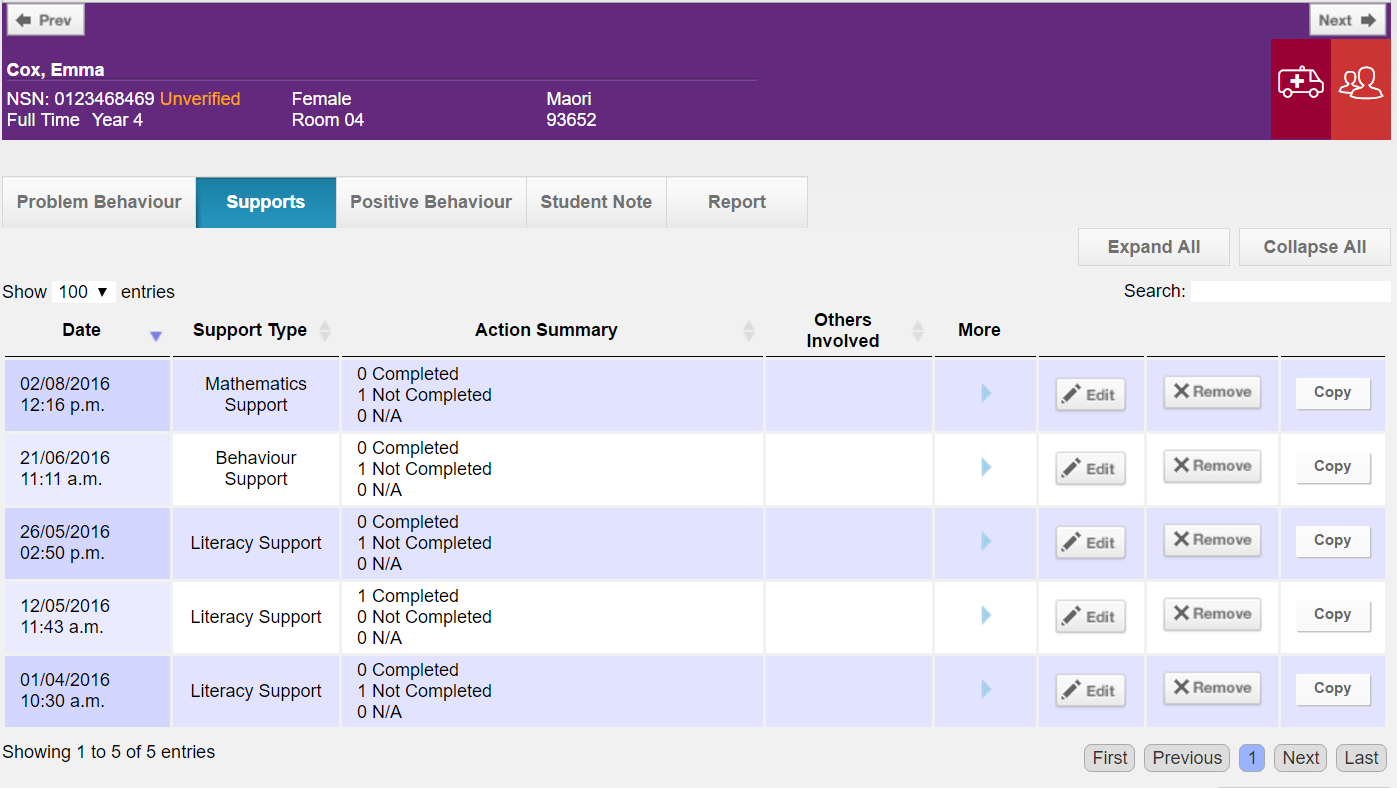
The student pastoral summary will keep track of supports added:


Users with Pastoral Officer responsibility assigned are also able to generate and print a pastoral report for any student.  This report can include all pastoral records or be limited to specific types only and over a selected date range:


Edge also offers the tools to analyse pastoral information in detail with interactive graphs and the ability to easily export transactions to Excel for further analysis.


To find out more check out our Knowledge Base articles or email our Services team to request training.


Sunday, 13 November 2016

Sunday, 6 November 2016

New Features on Student Summary Page in Edge Student Manager

Our developers have been working hard behind the scenes to transform the student summary page in Edge Student Manager. Our vision is for this area of Edge to be a one-stop shop to find out key information about any student in your school. The page is available to access in both the administration and teacher views in Edge. Check out the short video below to find out more.

EDGE Library Manager continues to evolve

MUSAC's newest Cloud offering Edge Library Manager continues to evolve and schools are increasingly making the move from MUSAC Library Manager and other platforms to the simplicity of Edge LM. For schools using Edge Student Manager automatic borrower updating is now available. This means that any student who is enrolled in Edge SM is automatically available as a borrower the following day in Edge Library Manager. Check out the short video below for an overview of Edge LM.